
A guy on a PC building forum posted his new rig last month: Ryzen 5 5600, RTX 4080, 1080p monitor. He’d spent $700 on a GPU his CPU could never fully feed at that resolution — and he only found out after benchmarking his favorite game and watching his frame rate barely beat someone running a $400 card. That’s not a rare mistake. It’s the single most common way people waste money on a PC build, and it happens because most bottleneck advice stops at “here’s your percentage” without explaining the actual buying decision or verification process behind it. This covers both — the buying mistakes that create bottlenecks in the first place, and exactly how to confirm what a calculator tells you using real monitoring software.
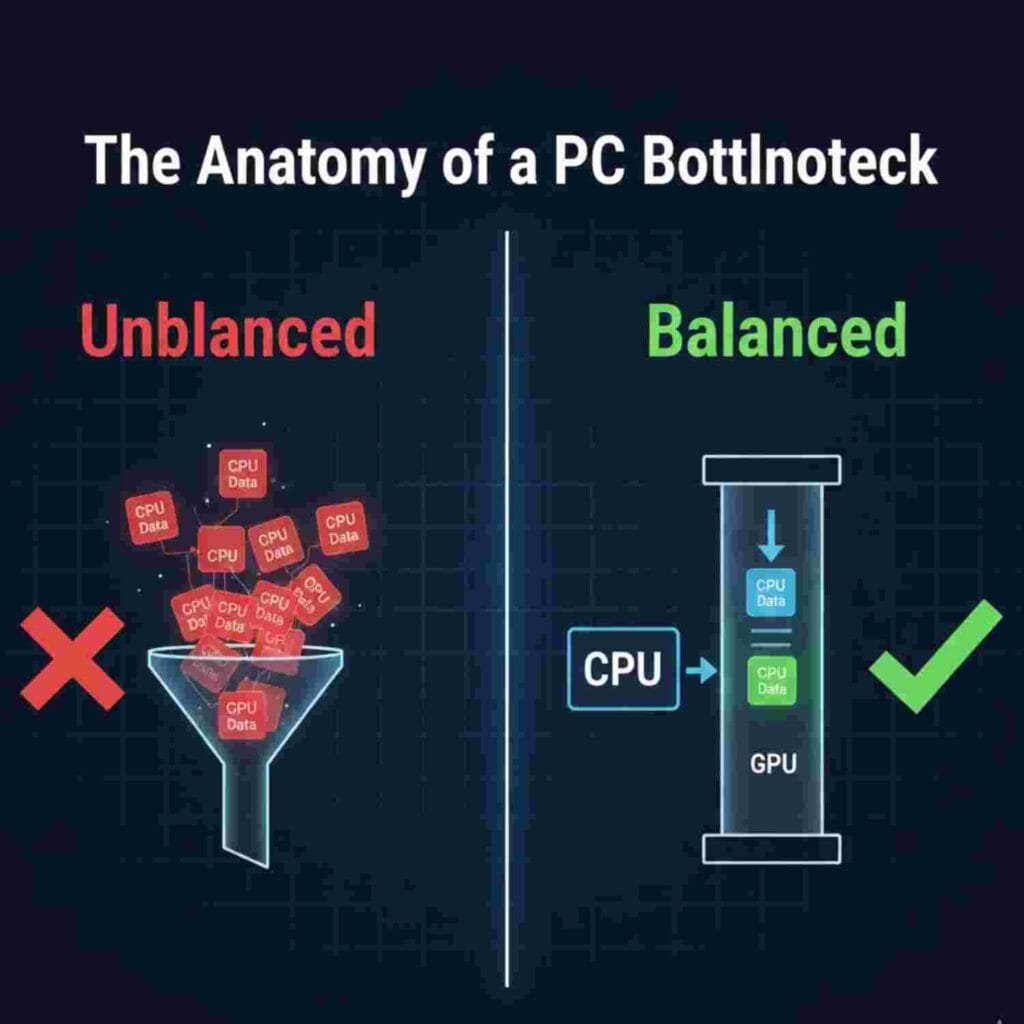
Why Your Bottleneck Percentage Changes Depending on What You Play
A bottleneck percentage is an average pulled from benchmark data across many games — but your actual bottleneck shifts depending on what you’re playing, not just what hardware you own.
CPU-Heavy Genres
Strategy and simulation titles like Civilization VI, Cities: Skylines, and Total War: Warhammer III lean heavily on the CPU, since the game is constantly calculating AI turns, unit pathing, and city logic rather than rendering complex visuals. A modest GPU paired with a strong CPU handles these fine.
GPU-Heavy Genres
Visually dense open-world games with ray tracing, like Cyberpunk 2077 or Alan Wake 2, shift almost entirely onto the GPU regardless of your CPU. The rendering workload dominates, and a fast CPU sits comfortably idle waiting on frames.
The In-Between Case: Competitive Shooters
Games like Valorant or CS2 sit in between — they’re CPU-sensitive at high frame rates (300+ FPS territory) because the engine processes far more frames of game logic per second, even though the visuals themselves are simple.
This is why the same Ryzen 7 5800X and RTX 4070 pairing can show a near-perfect 3% bottleneck in Cyberpunk 2077 and a rough 18% bottleneck in Cities: Skylines — the number was never fixed to begin with, it moves with what’s actually running on screen.
Real Case Studies: Where People Actually Go Wrong
Case Study 1: The Budget Builder Who Bought Backwards
A $900 budget build with a Ryzen 5 5600 (roughly $130) and an RTX 4070 (roughly $550) looks reasonable on paper — good GPU, decent CPU, solid price point. In practice, at 1080p in a CPU-heavy title, that CPU pinned itself at 97-99% usage in Task Manager while the GPU sat around 68-72%, meaning roughly a quarter of that GPU’s real capability was going unused.
The fix wasn’t a bigger GPU — it was reallocating $80 of that budget toward a Ryzen 5 7600 instead, and stepping down to an RTX 4060 Ti. Same total spend, and after the swap, GPU usage climbed to 91-94% in the same title with the CPU sitting comfortably around 60%, because the components were actually matched to the resolution instead of chasing the biggest GPU the budget allowed.
Case Study 2: The 1440p Upgrader Who Assumed Resolution Fixes Everything
Bumping from 1080p to 1440p is genuinely one of the best ways to shift load off a weaker CPU onto the GPU — that part’s true. A builder running an older Ryzen 5 3600 paired with a new RTX 4070 Ti Super saw his CPU usage drop from around 95% at 1080p down to roughly 78% after switching to 1440p — a real improvement, but not a cure.
His CPU was still the clear limiting factor in CPU-heavy scenes, because the 3600’s per-core performance was already dated relative to what a 4070 Ti Super can push. Resolution changes ease a CPU bottleneck. They don’t erase an outdated CPU architecture.
How to Verify What the Calculator Told You
A bottleneck calculator gives you a starting estimate based on aggregate benchmark data — confirming it on your own system takes about five minutes with the right tools, and skipping this step is exactly how people end up making an upgrade decision based on a number that doesn’t match their actual game library.
The Monitoring Tools That Actually Work
MSI Afterburner paired with RivaTuner Statistics Server is the standard combo for this — Afterburner monitors your hardware in the background, and RivaTuner displays a live on-screen overlay while you’re actually in-game, showing real-time CPU usage, GPU usage, clock speeds, and frame times without alt-tabbing out.
HWiNFO64 goes a level deeper if you want to catch thermal throttling or individual core usage rather than just overall CPU load — useful specifically when a calculator says you should be fine, but you’re still seeing stutters, since it can reveal a single overloaded core or a temperature spike the overlay alone won’t show clearly.
Numbers from a calculator are a starting point — if you want to see what’s actually happening inside your system during a real gaming session, read our hands-on guide on how to find your PC bottleneck through live monitoring.
What Numbers to Actually Watch
Launch your most-played game, let it run for 10-15 minutes of normal gameplay, and compare your average CPU and GPU usage percentages side by side. If your CPU sits at 90%+ while your GPU stays below 80%, you have a real CPU bottleneck regardless of what the calculator estimated. If your GPU sits at 95-99% while your CPU has clear headroom, that’s the ideal balanced scenario — your GPU is being used to its full potential.
CPU-First or GPU-First: The Actual Decision Framework
This is the question almost every upgrader asks and almost no article answers directly.
If your CPU is more than two generations old relative to your GPU, or if you’re gaming below 1440p with a mid-to-high-end card, upgrade the CPU first — you’re leaving real GPU performance on the table otherwise. If your GPU is the older component, or you’re already at 1440p/4K with a recent CPU, the GPU is almost always the better next dollar spent, since resolution-heavy rendering load sits almost entirely on the graphics card at that point.
The one exception: if you’re planning a full platform change (new CPU socket, new RAM generation) within the next year anyway, it’s often smarter to hold off on a CPU upgrade and put that money toward the GPU now, then do a complete platform refresh later instead of upgrading twice.
The Mistake Nobody Warns You About: Ignoring the Power Supply
A surprising number of “GPU bottleneck” complaints on forums turn out to be power delivery issues, not actual hardware mismatch. An undersized or aging power supply can’t sustain the transient power spikes modern GPUs demand under full load, causing the card to throttle itself down well below its rated boost clock — which looks identical to a bottleneck in monitoring software, but has nothing to do with your CPU or resolution at all.
Before spending money on a CPU or GPU upgrade based on a bottleneck reading, confirm your PSU is rated with roughly 150-200 watts of headroom above your components’ combined rated draw. It’s the cheapest possible fix that gets overlooked constantly, and RivaTuner’s overlay will actually show you GPU clock speed dips that correlate with power delivery issues if you know to look for them.
Future-Proofing Without Overspending
The instinct to “buy the best CPU now so I never bottleneck a future GPU” usually backfires financially. CPU architecture improves fast enough that a CPU bought two years early for future-proofing is often outperformed by a mid-range CPU released the year you actually need the upgrade, at a lower price.
The smarter version of future-proofing is buying a CPU that comfortably handles your current GPU with headroom to spare — not maxing out your budget on a CPU generation ahead of what your GPU can currently use.
Frequently Asked Questions
Should I upgrade my CPU or GPU first if I can only afford one?
Upgrade whichever component is currently the clearer limiting factor for your resolution — if you’re at 1080p with a strong GPU and older CPU, the CPU is almost always the better first upgrade, since the GPU’s extra performance is otherwise wasted.
What’s the best free tool to monitor CPU and GPU usage while gaming?
MSI Afterburner paired with RivaTuner Statistics Server is the most common combo, since Afterburner handles monitoring in the background and RivaTuner displays a live overlay in-game; HWiNFO64 is worth adding if you need deeper per-core and thermal data.
Is it worth waiting for next-gen hardware instead of upgrading now?
If your current bottleneck is actively hurting your gameplay experience, upgrade now — hardware releases are constant, and waiting indefinitely for “the next big thing” means never actually fixing the problem you have today.
What’s a reasonable budget split between CPU and GPU for gaming?
A common rule of thumb is roughly 60-70% of your hardware budget toward the GPU and 30-40% toward the CPU for 1440p and above gaming, though this shifts closer to even at 1080p, where CPU performance matters proportionally more.
Can an older CPU bottleneck a brand-new GPU even at 1440p?
Yes, if the CPU is several generations old — resolution scaling helps but doesn’t fully erase a genuinely outdated processor’s per-core performance ceiling, as the 1440p case study above shows.
Does upgrading RAM fix a CPU bottleneck?
Sometimes partially — moving from single-channel to dual-channel RAM, or fixing an underclocked memory kit in BIOS, can meaningfully improve frame times, but it won’t fully resolve a bottleneck caused by the CPU’s core architecture itself.
Why does my bottleneck percentage change between games?
Because CPU-heavy genres (strategy, simulation) and GPU-heavy genres (open-world, ray-traced) place completely different loads on your hardware — a calculator’s percentage is an average, not a fixed number for your specific system.
Is buying a slightly weaker GPU to match an older CPU ever the right call?
Yes, if your CPU is genuinely the limiting factor and a full platform upgrade isn’t in the budget right now — matching your GPU purchase to your actual CPU ceiling avoids paying for GPU performance you can’t use yet.
Run your exact build through the PC Bottleneck Calculator before making any upgrade decision from this guide, then confirm it with MSI Afterburner and RivaTuner during an actual gaming session — the calculator gives you the estimate, the overlay gives you the proof.
Built by Muhammad Hashir — Founder, NextGen Calculators. Last Updated: July 2026.